How to Make Custom Roblox Shirts and Pants: Complete Step-by-Step Guide
A comprehensive tutorial covering official 585×559 UV template dimensions, design layers, real-time 3D previewing, seam alignment, and uploading to the Roblox Creator Hub.
Understanding the Official 585 × 559 Template Format
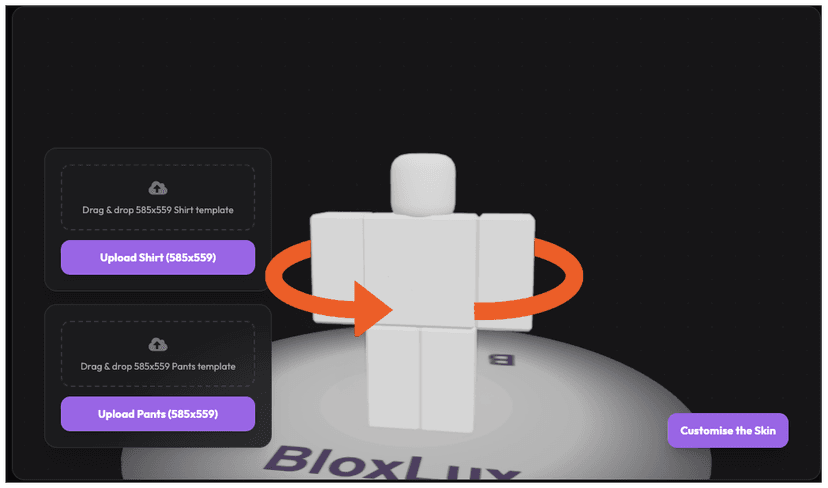
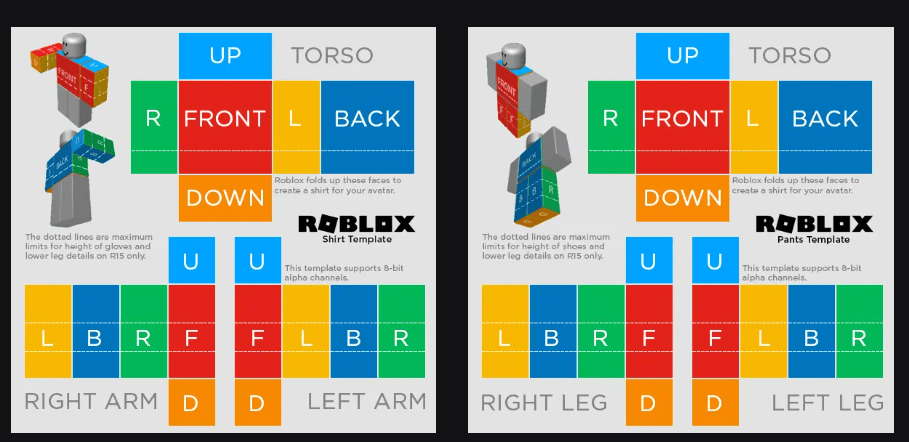
In Roblox, both Classic Shirts and Classic Pants are painted onto standardized 2D UV unwraps. The template file must measure exactly 585 pixels wide by 559 pixels high in PNG format with 8-bit alpha transparency.
| Body Part | Front & Back | Sides (Left / Right) | Top & Bottom |
|---|---|---|---|
| Torso (Chest & Back) | 128 × 128 px | 64 × 128 px | 128 × 64 px |
| Arms (Left & Right) | 64 × 128 px | 64 × 128 px | 64 × 64 px |
| Legs (Left & Right) | 64 × 128 px | 64 × 128 px | 64 × 64 px |
Designing with Multi-Layer Canvas in the BloxLux Editor
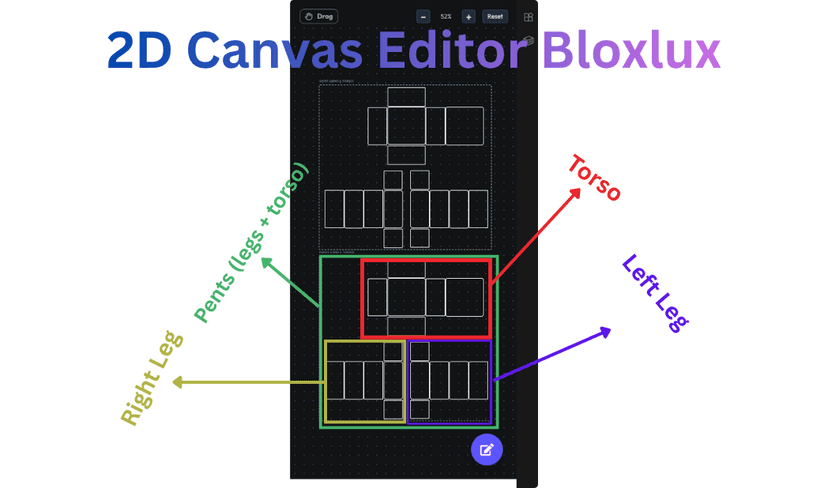
Professional Roblox clothing creators never paint directly on the flat template image. Instead, organize your outfit across separate layers to make revisions and colorway variations simple:
- Layer 4: Badges, logos, zipper pulls, and pocket stitching.
- Layer 3: Shading highlights and wrinkle fold gradients.
- Layer 2: Fabric textures (denim, corduroy, camo patterns).
- Layer 1: Solid base color tone.
- Background: Semi-transparent official guide wireframe.
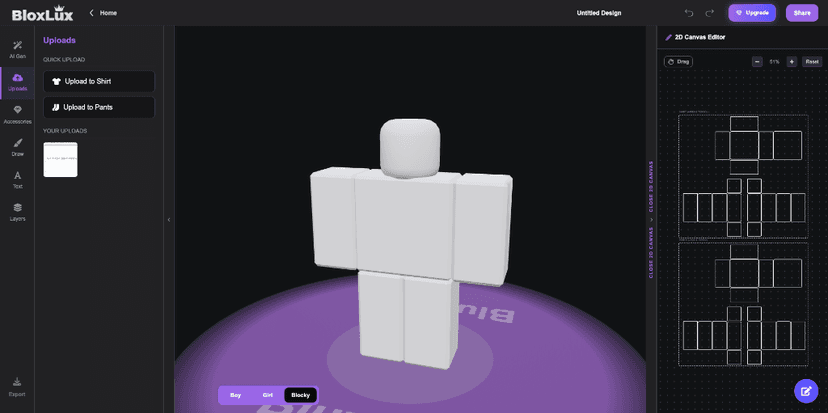
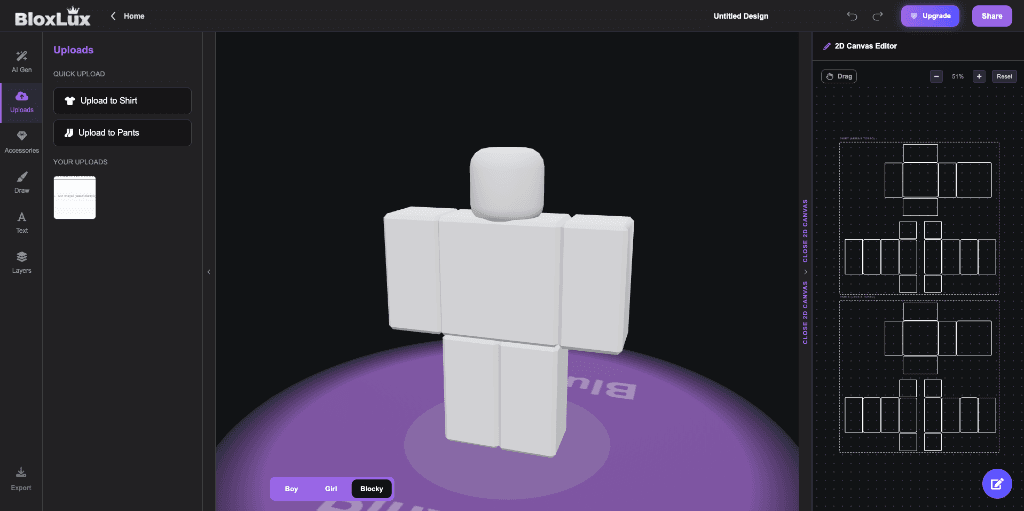
With the BloxLux editor, every stroke or texture adjustment in the 2D canvas updates live on the interactive 3D character mannequin. You immediately see how a chest logo centers or how arm stripes align before exporting.
Aligning 3D Seams and Inspecting Outfits
The most frequent reason clothing looks unpolished on Roblox is mismatched seams. When 2D edges wrap around 3D geometry, slight pixel offsets create jarring visual breaks at joints:
Waistband Seam Coordination
Classic pants start directly where classic shirts end. Make sure your shirt hem doesn't accidentally cover your belt loops or high-waist pockets.
Shoulder & Armpit Continuity
Extend shoulder pattern lines by 2–3 pixels into the seam margin. This prevents avatar motion from exposing harsh background color lines when arms swing.
R15 Shoe & Ankle Boundaries
On R15 avatars, legs are divided into UpperLeg, LowerLeg, and Foot meshes. Keep shoe tops below the bottom dotted line so texture doesn't stretch during jump animations.
Free 3D Clothing Previewer (Zero Robux)
Never waste 10 Robux on an asset with broken seams. Test both your shirt and pants PNG files live on a 3D avatar before publishing.
Uploading to the Roblox Creator Hub
Once your template files are verified in the BloxLux 3D Previewer:
- Go to create.roblox.com/dashboard/creations and sign in.
- Click the Avatar Items tab, then choose either Classic Shirts or Classic Pants.
- Click Upload Asset, choose your exported 585 × 559 PNG file, and give your item an engaging, searchable title.
- Pay the one-time 10 Robux upload fee and wait a few minutes for automated asset moderation approval.
- Once approved, click the gear icon, select Configure, toggle On Sale, and set your price (minimum 5 Robux).
Frequently Asked Questions
Essential answers for designing, testing, and publishing custom Roblox shirts and pants.