
Preview Roblox Outfits and Accessories in 3D
A practical guide to checking custom shirt and pants templates in 3D, fixing collar and waistband seams, and matching accessories before paying the 10 Robux fee.
Why Testing in 3D Saves Real Robux
If you design clothing for Roblox or buy UGC accessories, you have probably run into this headache: you spend hours drawing a custom shirt or spend 100 Robux on a cool hat, only to equip it in-game and realize the hat cuts straight through your avatar's hair. Or worse, you pay the 10 Robux upload fee for a shirt, put on a necklace or scarf, and find out your collar graphic is completely covered up.
Roblox does not offer refunds on catalog accessories, and that 10 Robux upload fee is gone forever even if your shirt has transparent seam glitches. Testing your 585x559 pixel templates and checking accessory clearances on a 3D model first is the only way to avoid wasting Robux.
Below is a full walkthrough showing how to use the free BloxLux 3D Clothing Previewer to inspect shirts, pants, and seams in real time before publishing.
How to Use the 3D Clothing Previewer
The BloxLux 3D Clothing Previewer runs right in your browser with zero downloads and no login required. Here is the step-by-step flow from loading a template to rotating the finished avatar.
Open the 3D Clothing Previewer
Head over to bloxlux.com/clothing-previewer. You will see a 3D blocky avatar standing on a turntable platform with two upload panels on the left: one for your shirt template and one for your pants template.
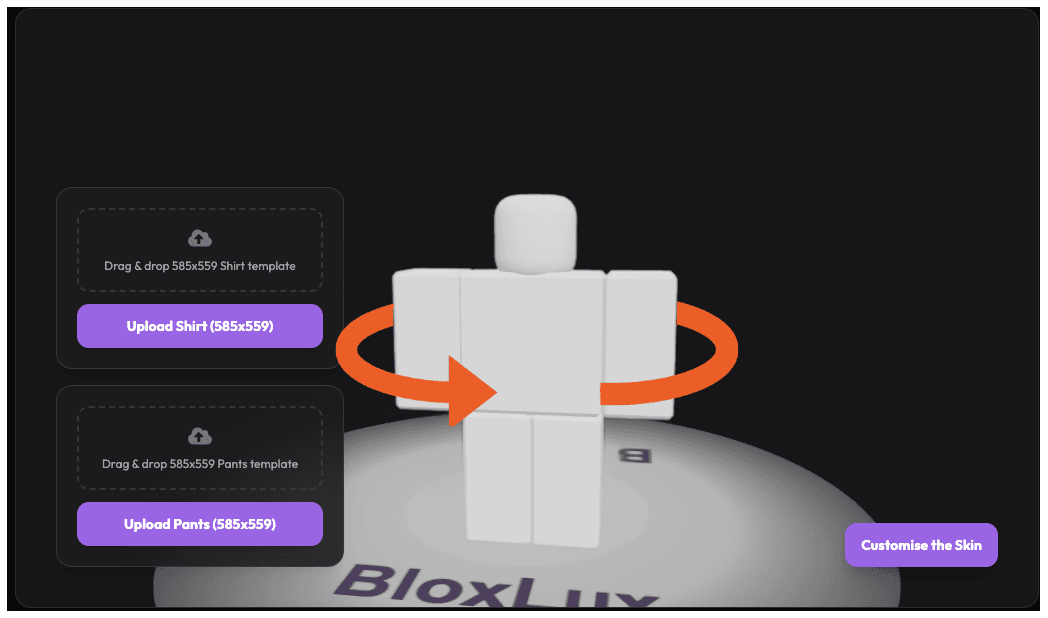
The 3D blocky mannequin loads on an interactive turntable ready for template testing.
Upload Your 585x559 Shirt Template
Click the purple "Upload Shirt (585x559)" button, or drag and drop your shirt PNG directly into the dashed upload card. The Three.js 3D engine immediately applies the 2D texture across the avatar's torso, back, and sleeves.
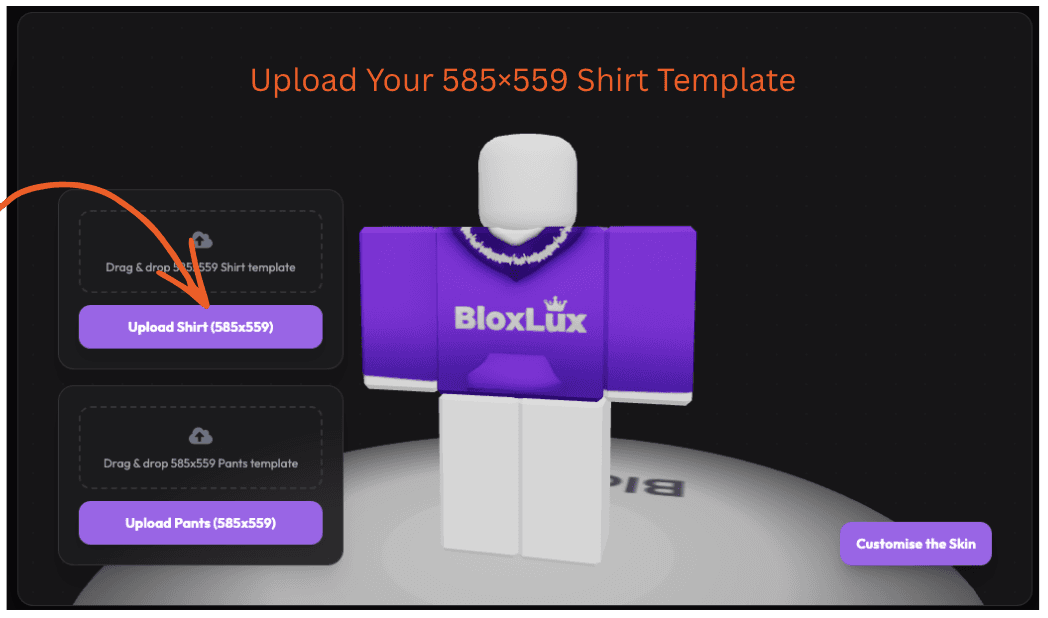
What to check: Look closely at the collar depth. If you plan to equip neck accessories like scarves, ties, or gold chains, make sure the front graphic sits low enough so your accessory does not obscure it.
Upload Your 585x559 Pants Template
Next, click the "Upload Pants (585x559)" button and choose your pants PNG file. The tool wraps the pants texture around the hips, legs, and shoes in real time.
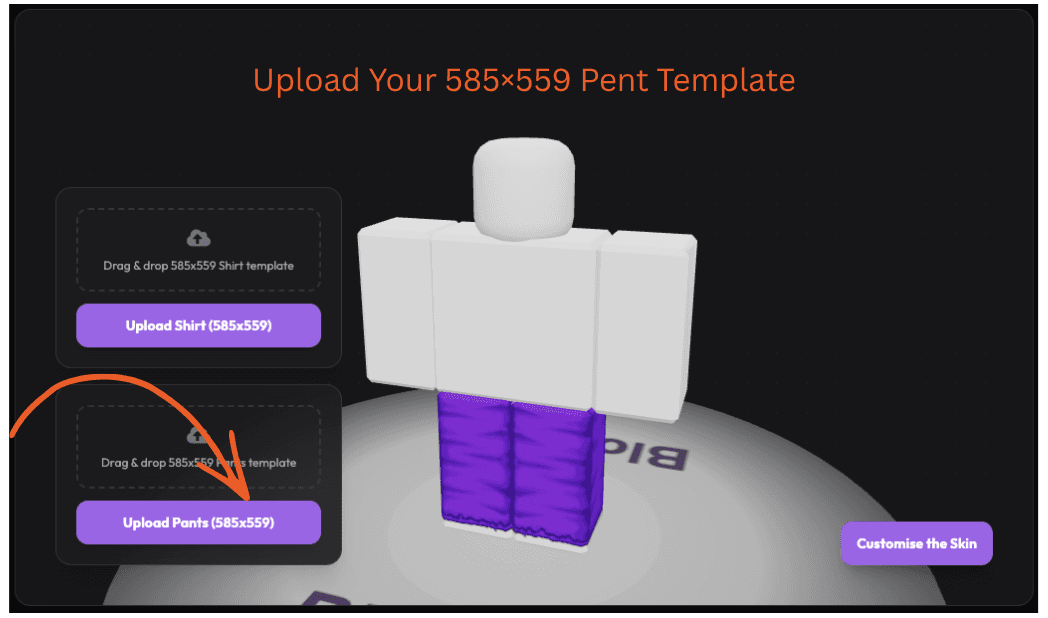
What to check: Pay special attention to the waistband line where your shirt and pants meet. If your template has missing or transparent pixels at the bottom of the torso, you will see default grey skin peeking through. Catching this now saves you from paying 10 Robux twice.
Rotate 360° to Check Seams and Accessory Clearances
Click and drag anywhere on the 3D canvas (or touch and drag on a phone or tablet) to rotate the avatar a full 360 degrees.
Inspect the back of the torso, underarms, and waistband. If you wear back accessories like wings, capes, or swords, make sure the main logos or text on the back of your shirt are not obscured.
Need to make a quick fix? Click the "Customise the Skin" button in the bottom-right corner to open the built-in editor and adjust pixels before publishing.
Tips for Previewing 3D Accessories in Roblox
Now that your clothing template is verified, here are practical ways to ensure your 3D hats, glasses, and hair accessories look clean without clipping:
Use Adjustment Sliders
In the Roblox Avatar Editor, tap any equipped head item and open the Adjust sliders. Increasing the Scale slider slightly (1.05x to 1.1x) stretches the hat just enough to enclose your hair mesh cleanly.
Test Combos in Sandboxes
The official marketplace only previews one accessory at a time. To test your hair, hat, and jacket combo together, join a sandbox experience like Catalog Avatar Creator and search by item Asset IDs.
Stack Hairs via Web Editor
If you want bangs, base hair, and extensions together, visit roblox.com/avatar on desktop, scroll down to the "Advanced" link under Hair, and paste up to 10 Asset IDs.
Pre-Upload Seam Checklist
Run through these 4 checks in the 3D previewer before publishing your template to Roblox:
4-Point Seam & Clipping Verification
Rotate 360° to ensure hats, beanies, or helmets do not have hair meshes piercing through solid surfaces.
Verify that shoulder pets, wings, or scarves do not sink inside or clip through your custom shirt collar.
Confirm necklaces, ties, or chest harnesses do not completely cover your shirt’s primary logo or artwork.
Inspect belts, holsters, and tails against your 585x559 pants template to ensure no transparent skin gaps appear.
Ready to Test Your Template?
Open the 3D Clothing Previewer, drop your 585x559 PNG shirt or pants file onto the mannequin, and inspect your seams from every angle before spending your 10 Robux fee.
Frequently Asked Questions
Common questions about Roblox clothing templates, 3D previewing, and accessory testing:
Test 585x559 shirt and pants templates in real-time 3D before uploading.
EditorDesign custom Roblox clothing layers with instant 3D model feedback.
LibraryBrowse community created shirts and pants templates ready to remix.