
How to Make Pants on Roblox
A comprehensive technical guide to mastering official 585×559 pants templates, understanding pelvis and leg folding, handling R15 dotted shoe boundaries, and verifying outfits before paying the 10 Robux fee.
Why Making Pants on Roblox is Different from Shirts
While shirts only wrap around the upper chest and arms, pants control both the Torso (pelvis, waistband, pockets, and belt) and both Legs (thighs, shins, cuffs, and shoe soles). Because each leg connects back to the crotch across physically separated 2D template faces, drawing on a flat image often leads to broken inner inseams and stretched textures across R15 avatar joints.
How Official Roblox Pants UV Templates Actually Work
Roblox uses a universal 585 × 559 pixel template to create classic pants. Rather than projecting a flat illustration over your character, the engine slices the 3D avatar’s lower body into flat rectangular polygons. When your character spawns in a game, the engine folds these faces around the avatar’s pelvis and leg meshes.
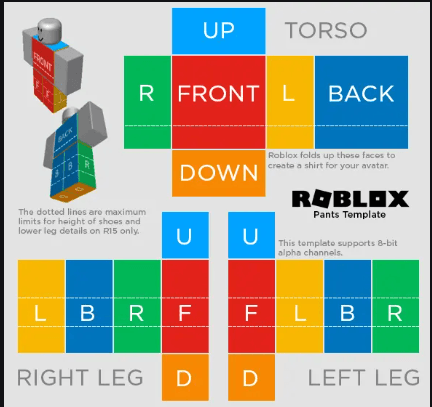
Roblox folds the upper block around the pelvis (torso) and the two lower blocks around the left and right legs.
Torso Section
Controls the waistband, belt loops, zipper fly, and back pockets.
- • FRONT / BACK: 128 × 128 px
- • R / L SIDES: 64 × 128 px
- • UP / DOWN: 128 × 64 px
Right vs. Left Leg
Notice that the face order reverses between legs:
- • Right Leg: L → B → R → F
- • Left Leg: F → L → B → R
- • U (Hip joint): 64 × 64 px
- • D (Shoe sole): 64 × 64 px
Dotted Lines (R15)
The dotted lines on the template denote maximum heights for shoes and lower leg details on R15 rigs.
Keeping shoes below the bottom dotted line prevents textures from tearing when knees bend.
How to Make Shorts, Skirts & Ripped Jeans with 8-Bit Alpha Channels
The official Roblox pants template supports 8-bit alpha transparency. Any pixel you leave 100% transparent on the canvas allows the avatar’s underlying skin tone to display in-game. To create denim shorts, mini-skirts, or ripped knees, simply leave those sections transparent on your PNG. Important: Never save your template as a JPG; JPEG does not support alpha channels and will turn all transparent areas into solid white or black blocks.
Designing in the BloxLux 2D Canvas Editor
To solve the frustration of guessing which 2D box maps to which 3D limb, we created the BloxLux Fullbody 2D Canvas Editor. It maps the official Roblox UV wireframes with clean color-coded boundaries and syncs directly to a live 3D avatar.
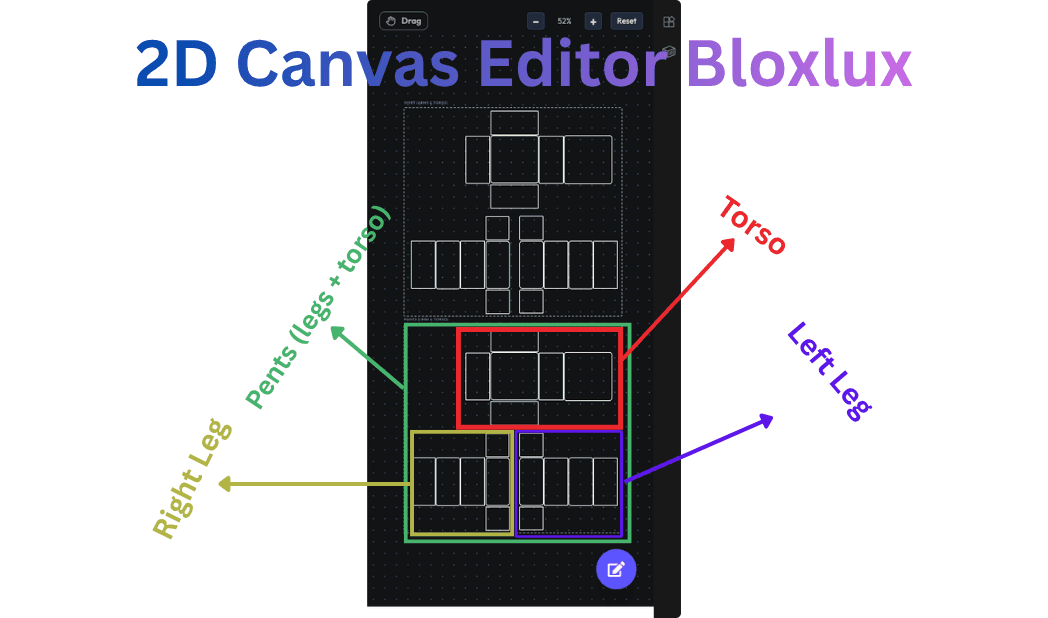
Annotated wireframe view: Red Box = Pelvis/Waistband (Torso), Olive Box = Right Leg, Purple Box = Left Leg.
Torso (Waistband & Pelvis)
Surrounded by the Red Box in the editor diagram. This section holds your front zipper, belt loops, waistband stitching, and back pockets.
Right Leg (Olive Box)
Houses the right outer thigh, back calf, inner inseam, and front shin. Keeping this separate prevents accidental texture inversion.
Left Leg (Purple Box)
Mirrors the right leg with opposite face ordering. BloxLux displays exact pixel guides so your cuffs and shoe collars align symmetrically.
Real-Time 3D Texture Synchronization
While you sketch, fill colors, or upload logos onto the 2D canvas on the right, the 3D avatar on the left immediately wraps your texture onto the 3D model. You can rotate the model 360° to verify that side stripes, cargo pockets, and denim fades wrap smoothly across the crotch seam and inner thighs with zero distortion.
Testing Outfits in the BloxLux 3D Clothing Previewer
Before you spend 10 Robux to upload your pants to Roblox, you need to verify how your design interacts with real shirts, jackets, and shoes. The BloxLux 3D Clothing Previewer lets you test full outfits in 3D for free without publishing anything to Roblox first.
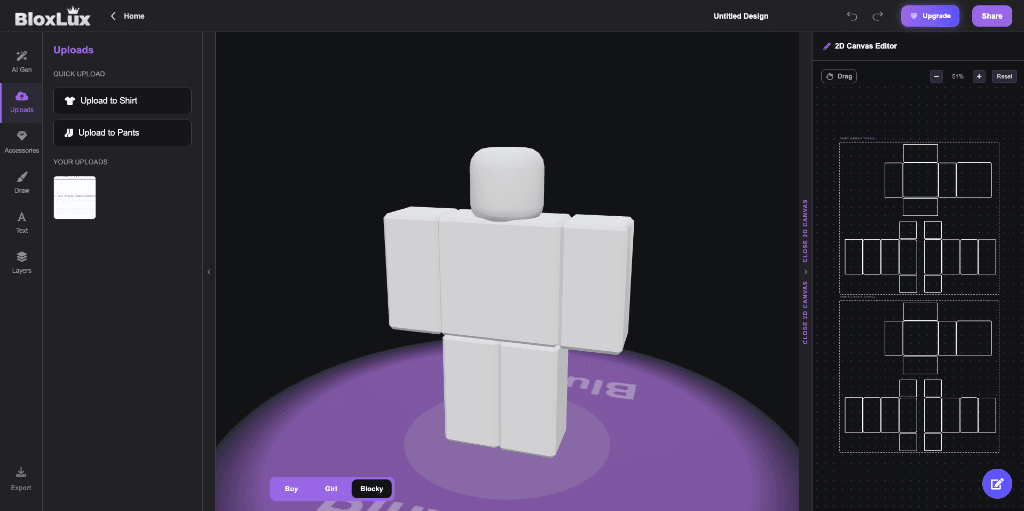
Upload your finished pants PNG into the 3D previewer to inspect waistband overlap, inner crotch seams, and shoe soles.
Waistband Overlap
Upload a shirt alongside your pants. Make sure the shirt hem doesn’t accidentally cover important belt buckles or waistband badges.
Inseam Seam Check
Spin the 3D model to look between the legs. Confirm that stripes and denim stitching meet cleanly without visible pixel steps or gaps.
Shoe Sole Texturing
Inspect the bottom `D` face of both feet. Ensure your sneaker treads or boot soles are textured instead of showing default grey skin.
Uploading Your Pants to the Roblox Creator Hub
Once your pants are designed and verified in the 3D previewer, follow these official steps to publish your creation to Roblox:
Export Your 585×559 PNG File
In the BloxLux Editor, click Export to download your verified 585 × 559 PNG file with 8-bit alpha transparency.
Navigate to Roblox Creator Hub
Go to create.roblox.com and sign in. Open the Creations tab, click Avatar Items, select Classics, and click Pants.
Upload Asset & Pay the 10 Robux Fee
Click Upload Asset, choose your PNG, provide a descriptive title and tags (e.g., "Black Baggy Y2K Cargo Pants"), and click Upload (10 Robux).
Set Your Price on the Marketplace
Once Roblox completes automated moderation, open your pants asset details, toggle On Sale, and enter your price (minimum 5 Robux). You keep 70% of every sale in Robux.
Frequently Asked Questions
Frequently Asked Questions
Direct answers to common technical questions about creating and publishing Roblox pants.
Explore More Creator Guides
How to Create Clothes on Roblox in 3D
Step-by-step walkthrough covering both shirts and pants, color palettes, and seam synchronization.
Preview Roblox Outfits and Accessories in 3D
Learn how to test custom clothes alongside UGC 3D accessories to prevent mesh clipping.
Ready to design custom pants for Roblox?
Open the BloxLux Fullbody Editor to paint with live 2D wireframe guidance and instant 3D avatar synchronization.