
How to Create Clothes on Roblox in 3D
A practical guide to understanding official 585x559 UV templates, designing with real-time 3D synchronization, and verifying your outfits before paying the 10 Robux fee.
How Roblox 2D Clothing Templates Work
Every Classic Shirt and Classic Pants in Roblox is created from an official 2D template measuring exactly 585 pixels wide by 559 pixels high. When you upload a template to Roblox, the engine wraps each section of this 2D image around your avatar's 3D body parts.
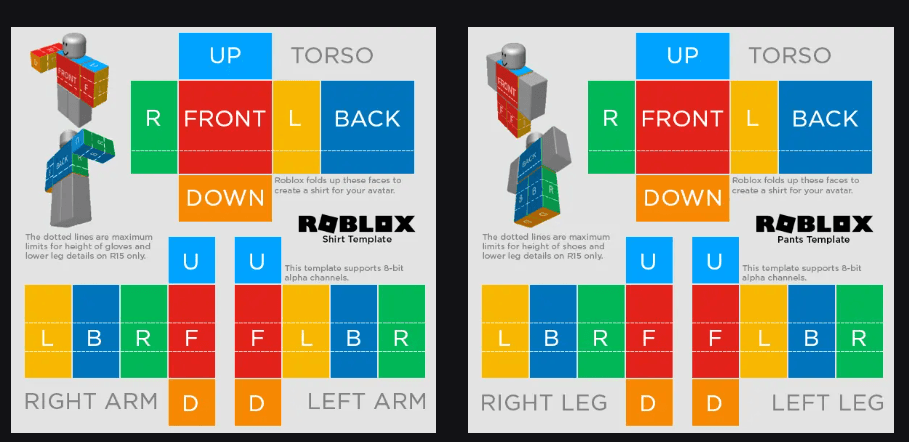
The official Roblox template unwraps the blocky avatar into 12 flat faces per clothing piece.
As shown in the official guide above, the layout splits the body into geometric faces:
- Torso: Divided into UP (shoulders and collar), DOWN (waistline), FRONT (chest), BACK, and L / R (side ribs).
- Arms & Legs: Each limb is unfolded into four vertical panels (Front, Left, Back, Right) along with top (UP) and bottom (DOWN) caps.
- Dotted Guidelines: Mark the maximum limits for shoes and lower arm details on R15 rigs.
The Core Problem: In standard 2D software like Photoshop, Paint.NET, or Canva, you are drawing on disconnected flat boxes. Because the front chest and back are split apart on the canvas, drawing continuous patterns (like jacket seams or striped shirts) requires manual guessing. If an edge is misaligned by even 2 pixels, your shirt will look distorted in-game—and every test upload costs a non-refundable 10 Robux fee.
Designing in the BloxLux Fullbody 3D Editor
To solve the blind 2D mapping issue, we built the BloxLux Online Fullbody Editor. Instead of working on a flat template in isolation, this editor synchronizes a 2D canvas editor directly with a real-time 3D avatar preview.
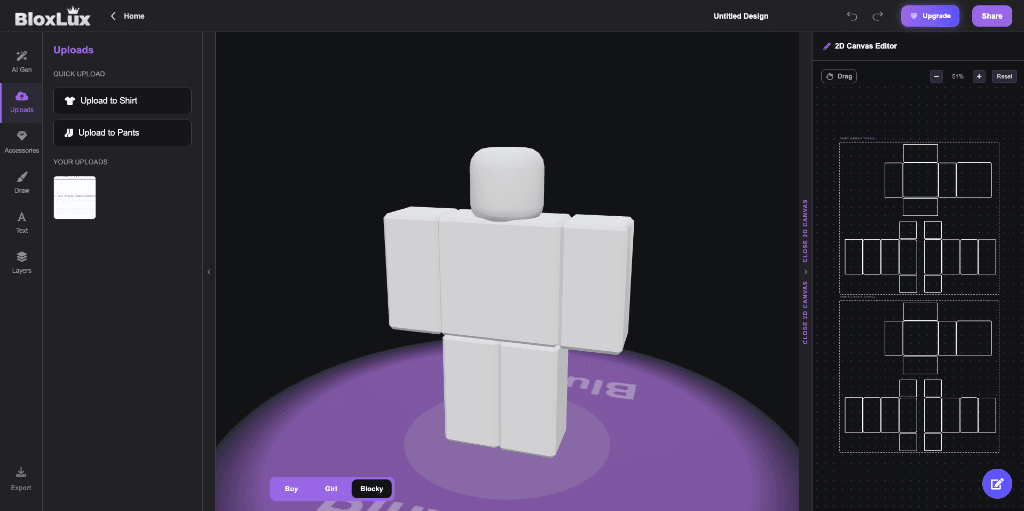
Draw or upload on the 2D canvas on the right while the 3D avatar on the left wraps textures in real time.
2D Canvas Editor (Right Panel)
Displays the exact template wireframes for both Shirt and Pants. You can fill colors, sketch details, place logos, and arrange isolated layers.
Live 3D Model Preview (Center)
Every stroke on the 2D canvas wraps onto the 3D avatar simultaneously. You can spin 360° to inspect underarms, collars, and hems while designing.
You can also switch the mannequin body between Blocky, Boy, and Girl to confirm your clothes fit every avatar rig, then click Export to download a clean 585×559 PNG with proper alpha transparency.
Testing Outfits in the 3D Clothing Previewer
Whether you created your templates inside BloxLux or already have finished files from Photoshop, testing them before publishing is essential to avoid losing Robux. For this purpose, we built the dedicated BloxLux 3D Clothing Previewer. It runs directly in your browser with zero downloads or accounts required.
Open the 3D Clothing Previewer
Head over to bloxlux.com/clothing-previewer. A 3D blocky avatar initializes on a turntable platform with quick upload panels on the left.
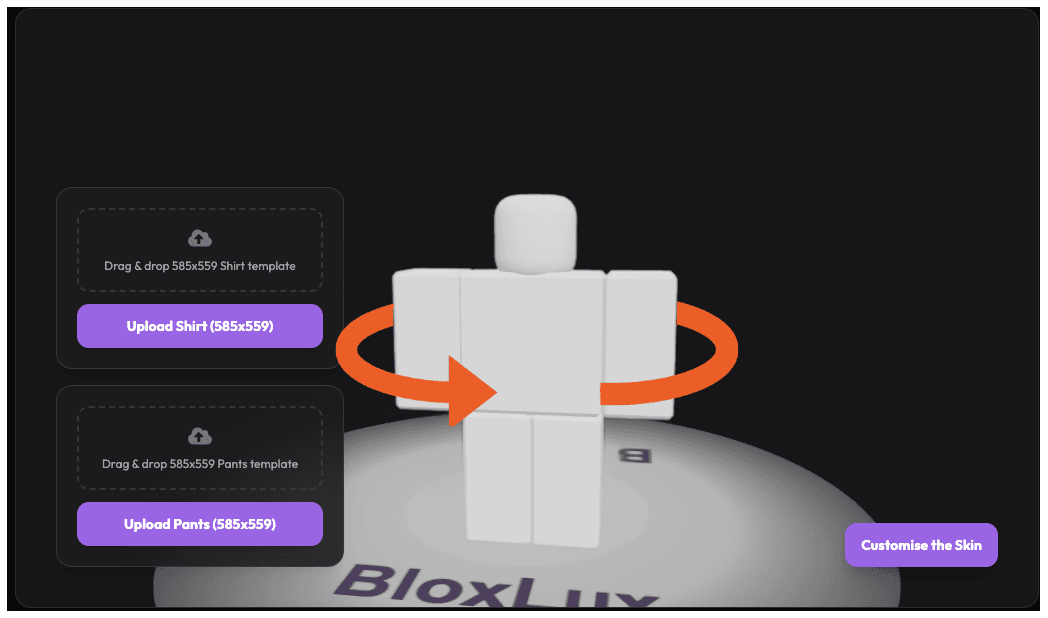
The 3D mannequin loads on an interactive turntable ready for testing.
Upload Your 585x559 Shirt Template
Click the Upload Shirt (585x559) button or drag your file into the card. The texture wraps instantly across the avatar's torso and sleeves.
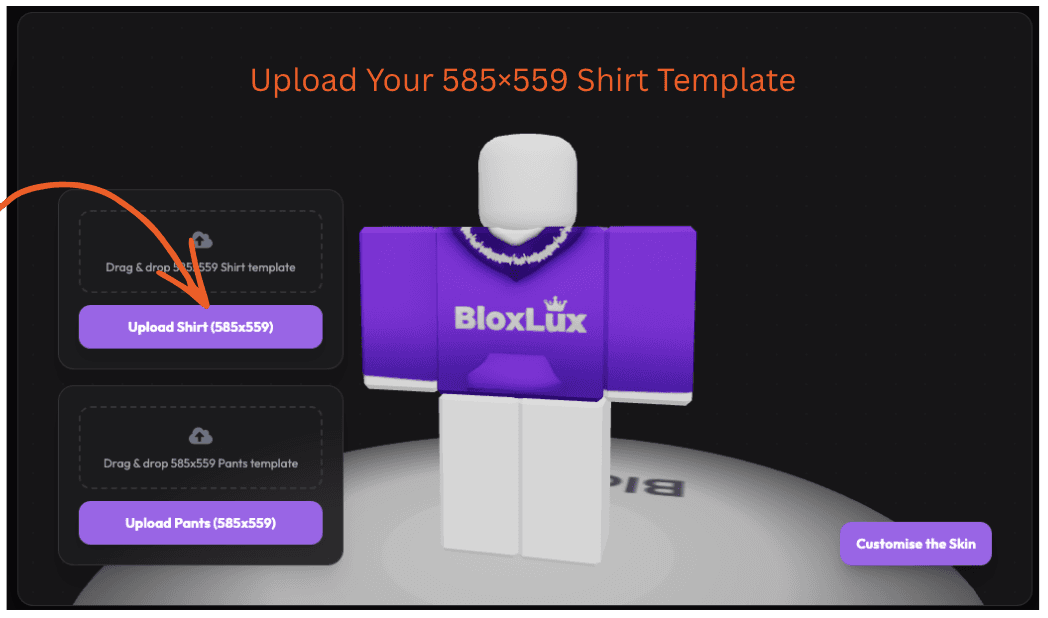
Inspect collar lines and sleeve length from every angle.
Upload Your 585x559 Pants Template
Click Upload Pants (585x559) to apply matching pants. You can now verify that the shirt hem meets the pants beltline properly with no awkward skin gaps.
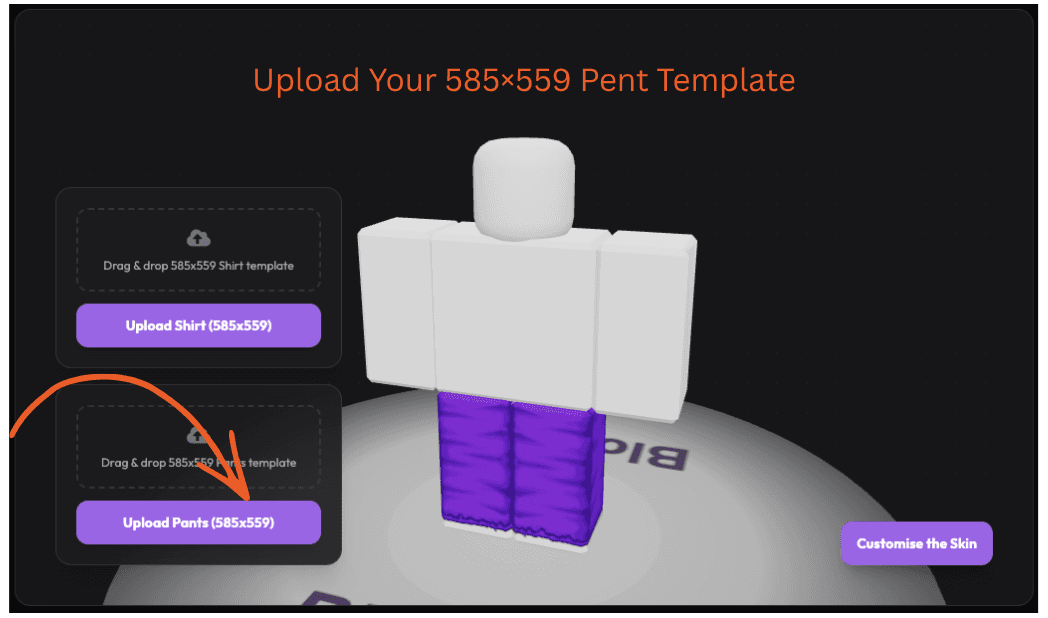
Verify complete outfit coordination before publishing.
Uploading to Roblox Creator Hub
Once your templates look seamless on the 3D previewer, you are ready to upload them to Roblox:
Open Avatar Items
Sign in to create.roblox.com, navigate to Creations, and open the Avatar Items tab.
Select Classic Items
Click on the Classic tab and choose either Shirts or Pants.
Upload & Pay 10 Robux
Click Upload Asset, choose your 585×559 PNG, give it a title, and pay the 10 Robux fee.
Set Sale Price
Once moderation approves your item, toggle On Sale, set your price (minimum 5 Robux), and earn a 70% creator share on each sale.
Frequently Asked Questions
Direct answers to common questions about creating and selling Roblox clothing.
Design and Preview Your Roblox Clothes in 3D
Use the BloxLux Online Fullbody Editor to design with real-time 3D sync, or test your finished 585x559 templates on the 3D Clothing Previewer.